Installation
Prerequisites
- Docker
- Linux, MacOS
Installation Steps
Step 1: Create the directory Structure
Create a directory and have docker compose in it.
mkdir ravenhall
cd ravenhall
Step 2: Create the Docker Compose File
touch docker-compose.yml
And paste this inside
services:
  backend:
    image: hero2004/ravenhall-backend:1.0.0
    container_name: ravenhall-backend
    env_file:
      - .env
    depends_on:
      - db
    restart: unless-stopped
    volumes:
      - "./Cool Books:/data/media/books" # Edit this to the path where your books reside
      - ravenhall_media:/data/media/metadata
      - ravenhall_secrets:/data/secrets
    networks:
      - ravenhall-network

  frontend:
    image: hero2004/ravenhall-webfront:1.0.0
    container_name: ravenhall-frontend
    depends_on:
      - backend
    restart: unless-stopped
    ports:
      - "1234:80" # change it to whatever you like
    networks:
      - ravenhall-network

  db:
    image: postgres:18-trixie
    container_name: ravenhall-db
    env_file:
      - .env
    restart: unless-stopped
    volumes:
      - "ravenhall-db-data:/var/lib/postgresql"
    networks:
      - ravenhall-network

networks:
  ravenhall-network:
    driver: bridge


volumes:
  ravenhall_media:
    driver: local

  ravenhall_secrets:
    driver: local

  ravenhall-db-data:
    driver: local
Create a .env and edit it to your liking
SPRING_DATASOURCE_USERNAME=ravenhall_user
SPRING_DATASOURCE_PASSWORD=ABookIsFullOfWondersAndMysteries
METADATA_PROVIDER=hardcover
METADATA_HARDCOVER_APIKEY=<apiKey>
METADATA_GOOGLE_APIKEY=<apiKey>
PUID=1000
PGID=1000
DOMAINS=*


DB_HOST=db
POSTGRES_USER=ravenhall_user
POSTGRES_PASSWORD=ABookIsFullOfWondersAndMysteries
POSTGRES_DB=ravenhall
Hardcover Provider
Do not put the bearer in the API Key field, only the token.
API Provider
Hardcover is heavily recommended as Google Books API can be wrong and is unavailable a lot of the time
Configuration Notes
- Your book structure needs to be organised in a certain way otherwise it might get dropped. Check the Book Directory guide.
PUIDandPGIDneed to be the same as your user and group ID (typically it's1000).- Important: Change the Postgres password in both places before starting!
Step 3: Run the Compose File
docker compose up -d
Step 4: Access Ravenhall
http://localhost:1234
Or from another device on your network: http://YOUR_SERVER_IP:1234
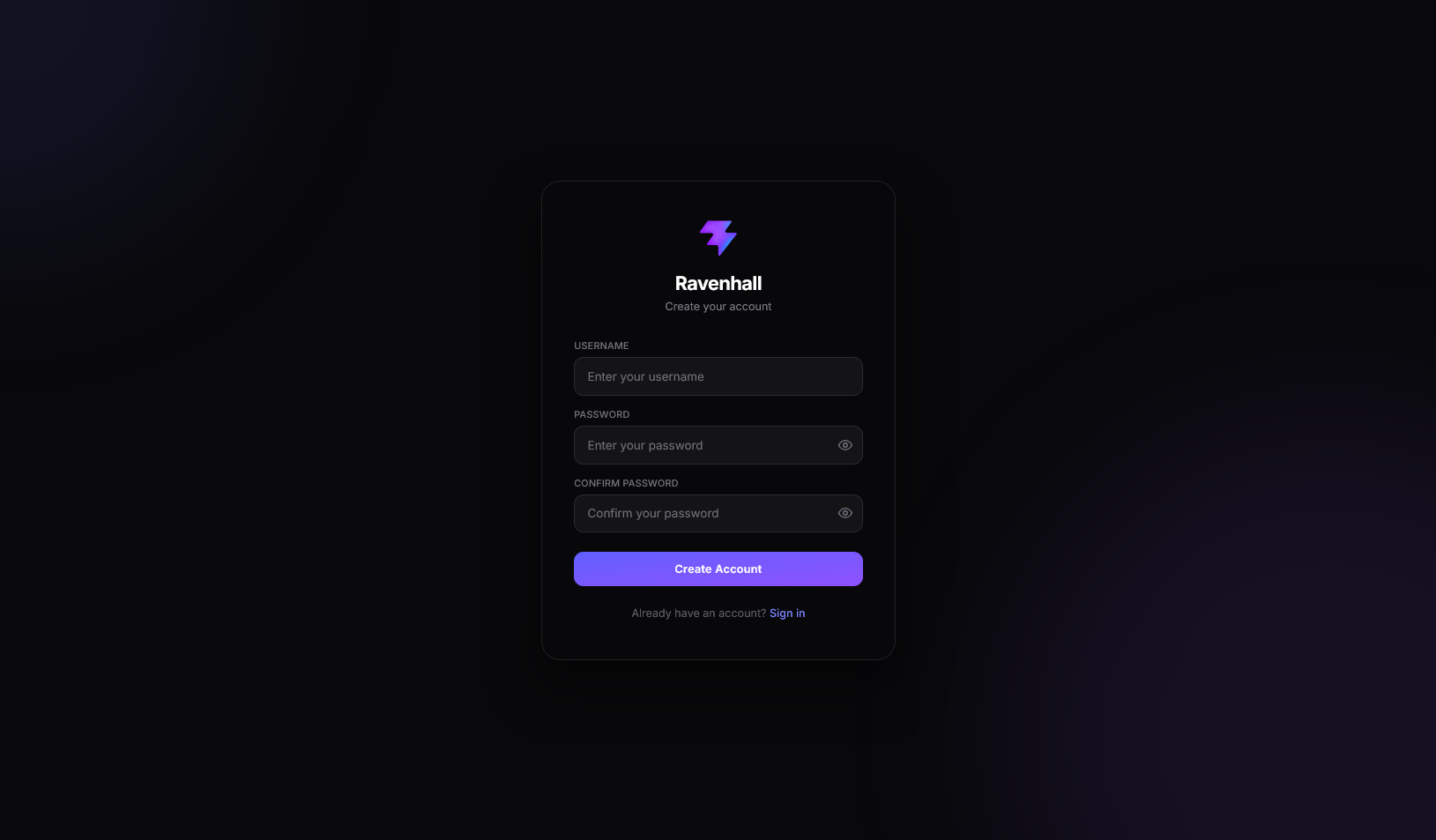
Step 5: Create your User
Step 6: Enjoy!
You are officialy done, you can choose any book you want and start reading it! all progress will be synced and you can continue where you left off!
info
It takes a while for the app to fetch the metadata so do not panic! just wait a few minutes